Setting Up Your Chat Environment
Step-by-Step Instructions
Please follow these instructions carefully, and don't hesitate to contact me directly if you encounter any issues.
Option 2: Setting Up on the Mobile App
If you prefer to use your phone, Mistral also offers a mobile app. The mobile setup requires a few extra steps to ensure proper configuration:
Step 1
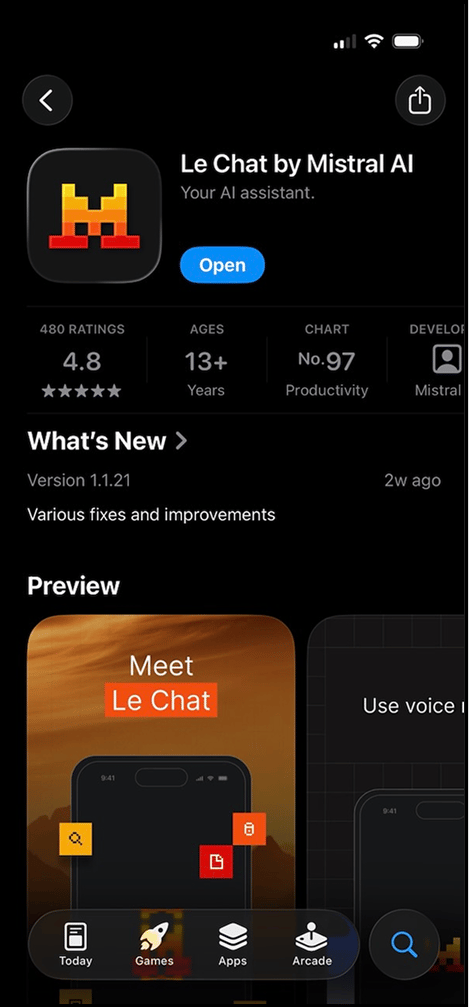
Download the app "Le Chat" available for free from the Android or Apple App Store
Step 2
Continue with Email: Log in using the username and password provided in the email you received on the first day of the experiment


Step 3
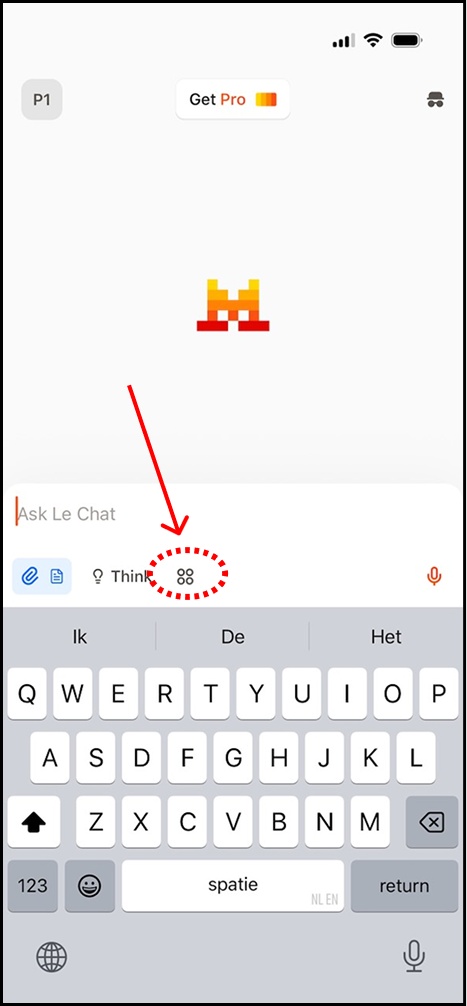
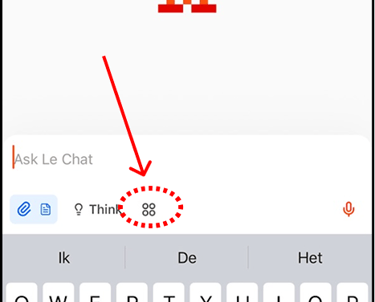
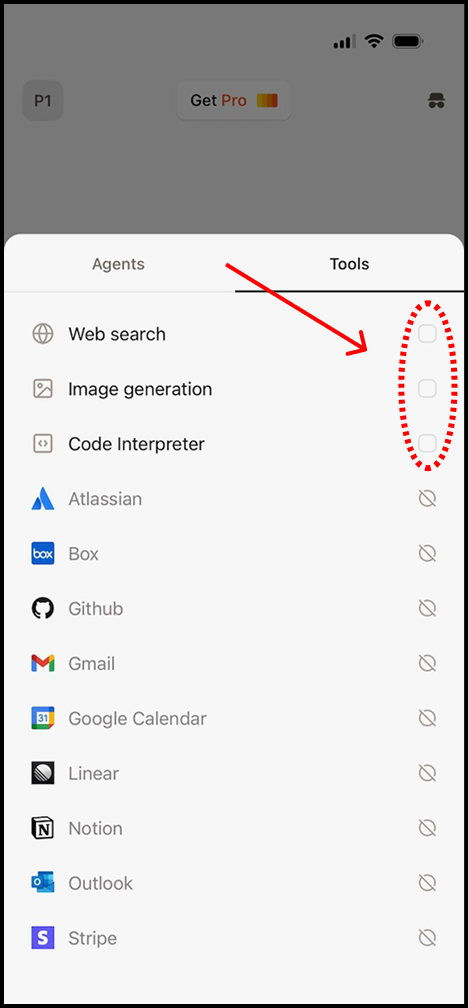
You'll arrive at a page where you can start chatting. Before you begin chatting, tap on the icon with 4 squares right below the chat box. This will show you 2 tabs: "Tools" and "Agents"
Step 4
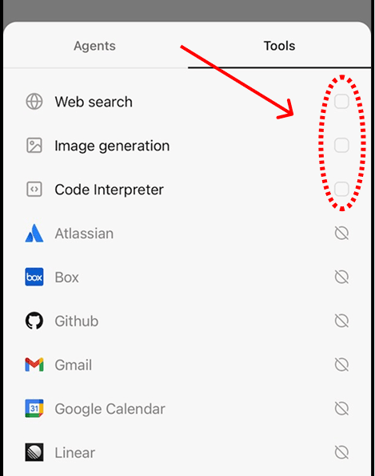
Uncheck all the tools, if there are any active
Step 5
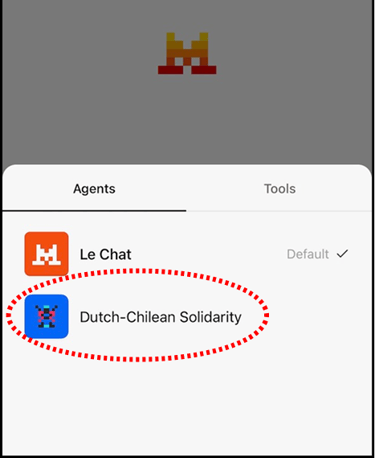
Go to the "Agents" tab and select the agent called "Dutch-Chilean Solidarity"

Step 6
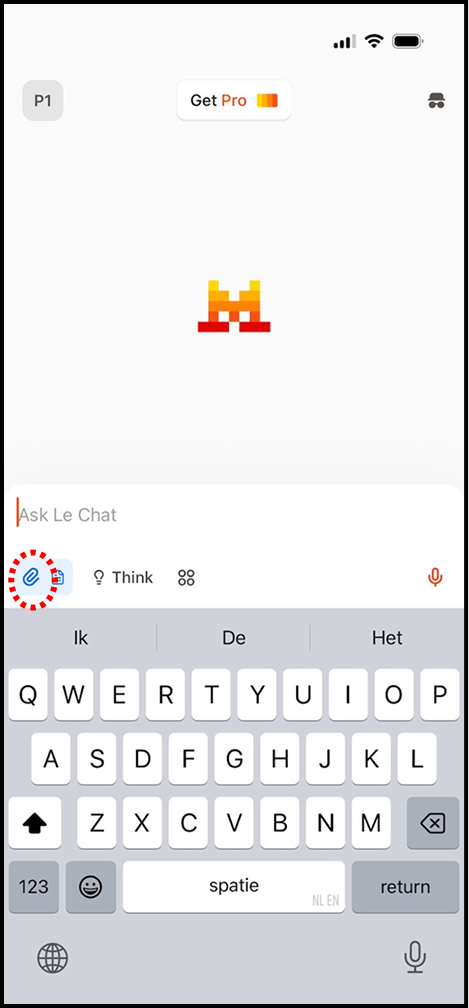
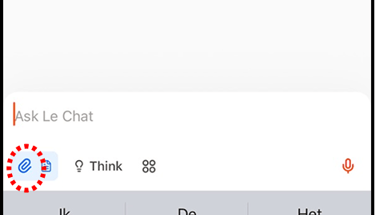
Back on the main window, click on the clip icon under the chat and select the document "40 años 40 historias"
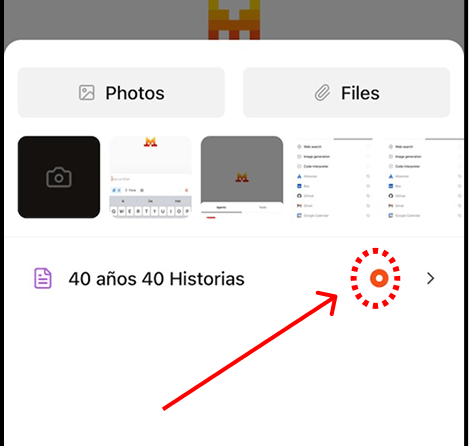
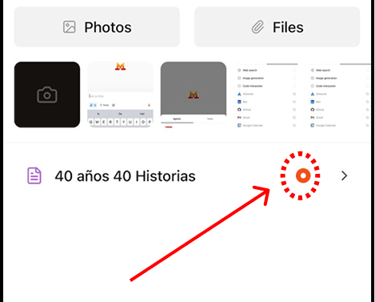
Step 7
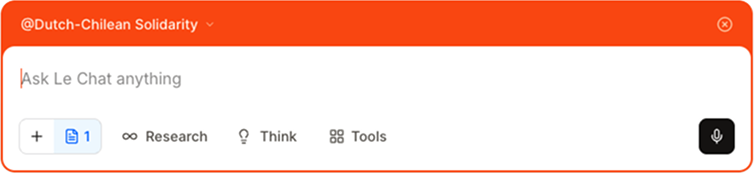
Tap back to the main page. The chat window should have an orange frame that says "@Dutch-Chilean Solidarity", and the clip icon below should be highlighted. If this is the case, you are ready to go!
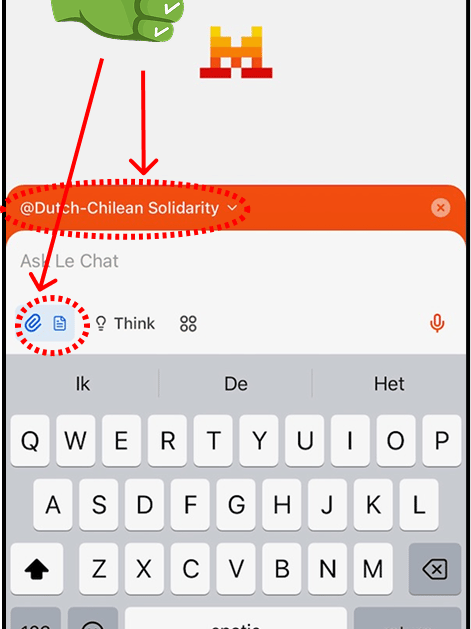
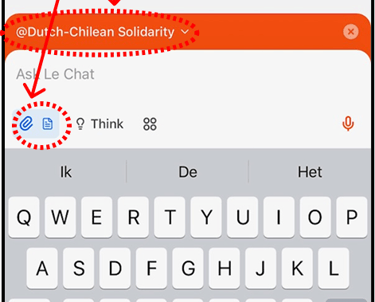
⚠️ Important: If you open a new chat window at any point, you must make sure that the "Dutch-Chilean Solidarity" agent is active and the "40 años 40 historias" attachment is connected (clip highlighted). If this is not the case, the chat will be generic and not relevant for this study.
Need Additional Help?
Feel free to contact me directly via email or text message if you encounter any technical difficulties or have questions about the setup process.
Once you're set up, you're ready to begin your conversations! Remember to engage at least 3 times during the week, and I'll send you reminder emails to help you stay on track.